Folders
Folders are central for the functionality of GrainForge. One added folder from your disk is a connected gallery that later is used to apply mass-edits and export your images. As a rule of thumb, a folder should contain the images of one roll of film or at least the images should be from one single film stock photographed in the same lighting conditions. This ensures the best possible outcomes and a smooth workflow.
Adding Folders
To add a folder from the disk you have to press the “Plus”-button in the navigation bar. If the navigation bar is not visible the button is hidden in a sub-menu in the top right corner of the application. Alternatively, you can use the shortcut ⌘⇧N or directly drop a folder from the finder into the folder list!
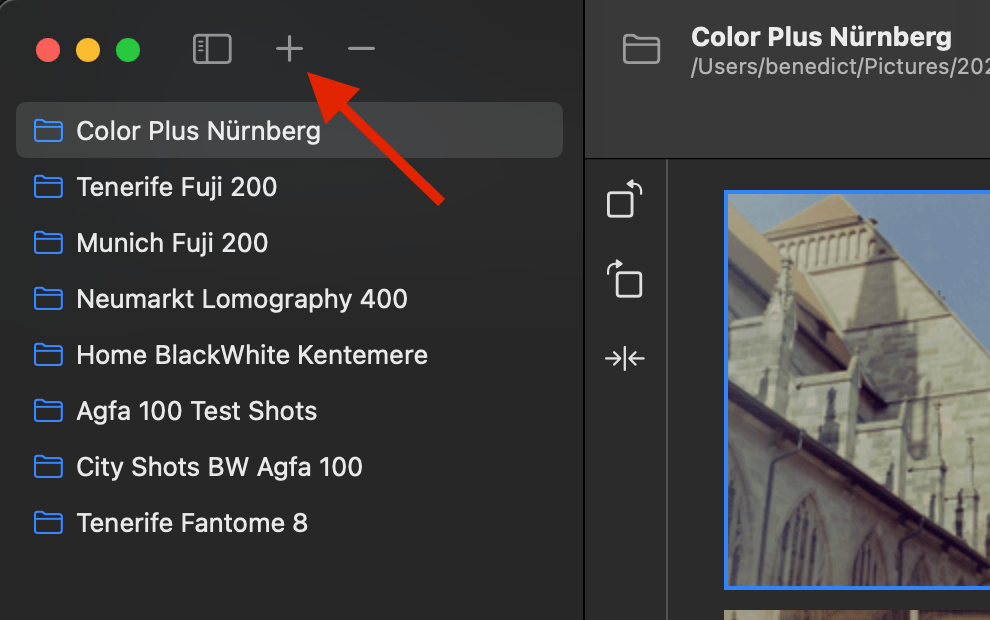
After adding a folder via the Finder window all photos within get loaded. No photos of subfolders get loaded!
Deleting Folders
When a folder is selected the folder can be deleted by using the “Minus”-Button right next to the Add-Folder-Button. When the folder is deleted all data objects that are related also get deleted (photo edits).
A non-selected folder can also be deleted by calling the context menu by right-clicking the folder.
Renaming Folders
Internally folders can be renamed in the application by right-clicking a folder in the navigation bar. This can be used for better distingushing between your folders in GrainForge. The folder does not get renamed on the disk. It is only an internal name.