Image Editing
Image-editing is the central feature of GrainForge. When an image is double-clicked the edit view opens.
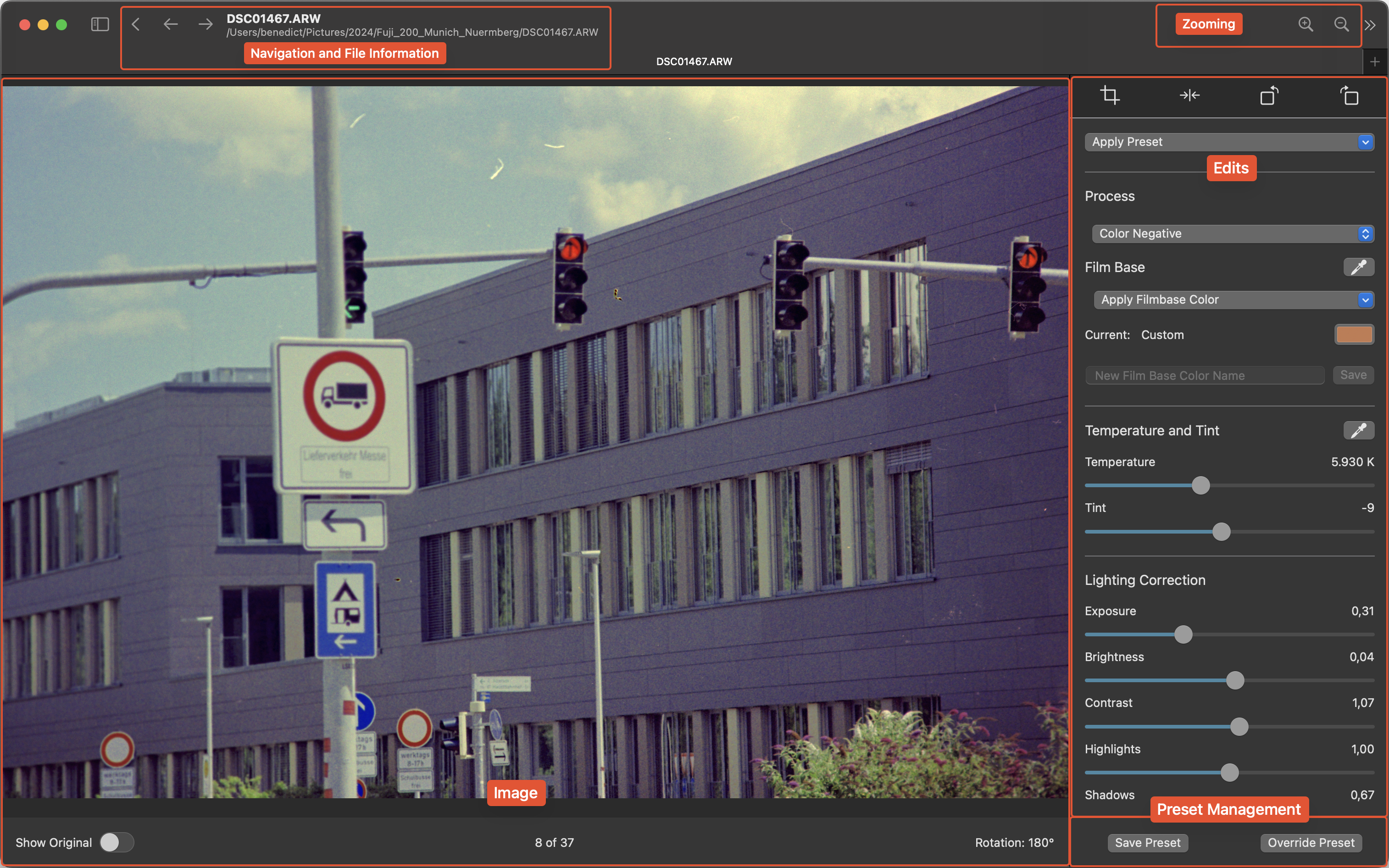
Navigation and File Information
The top bar shows the name of the currently displayed image and its file path. Next to it, you can navigate back to the gallery or flick through the gallery. This can also be done with the left and right arrow keys.
Image
The image itself takes up the most space. Below it there is important information and functionality:
- The “Show Original” toggle allows you to see your original image as it is on your disk with no edits at all.
- The index within the gallery is shown in the middle.
- The currently applied rotation is also shown. When double-clicked the rotation gets reset to 0°.
Zooming
You can zoom in (⌘+) the image and zoom out (⌘-) again. When using a trackpad pinch-to-zoom gestures are usable for zooming.
When zoomed in the image can be dragged by using the scroll-bars that appear on the side or with the two-finger-drag gesture when using a trackpad.
Double tapping the image resets the zoom.