Overview and Application Principles
General Structure
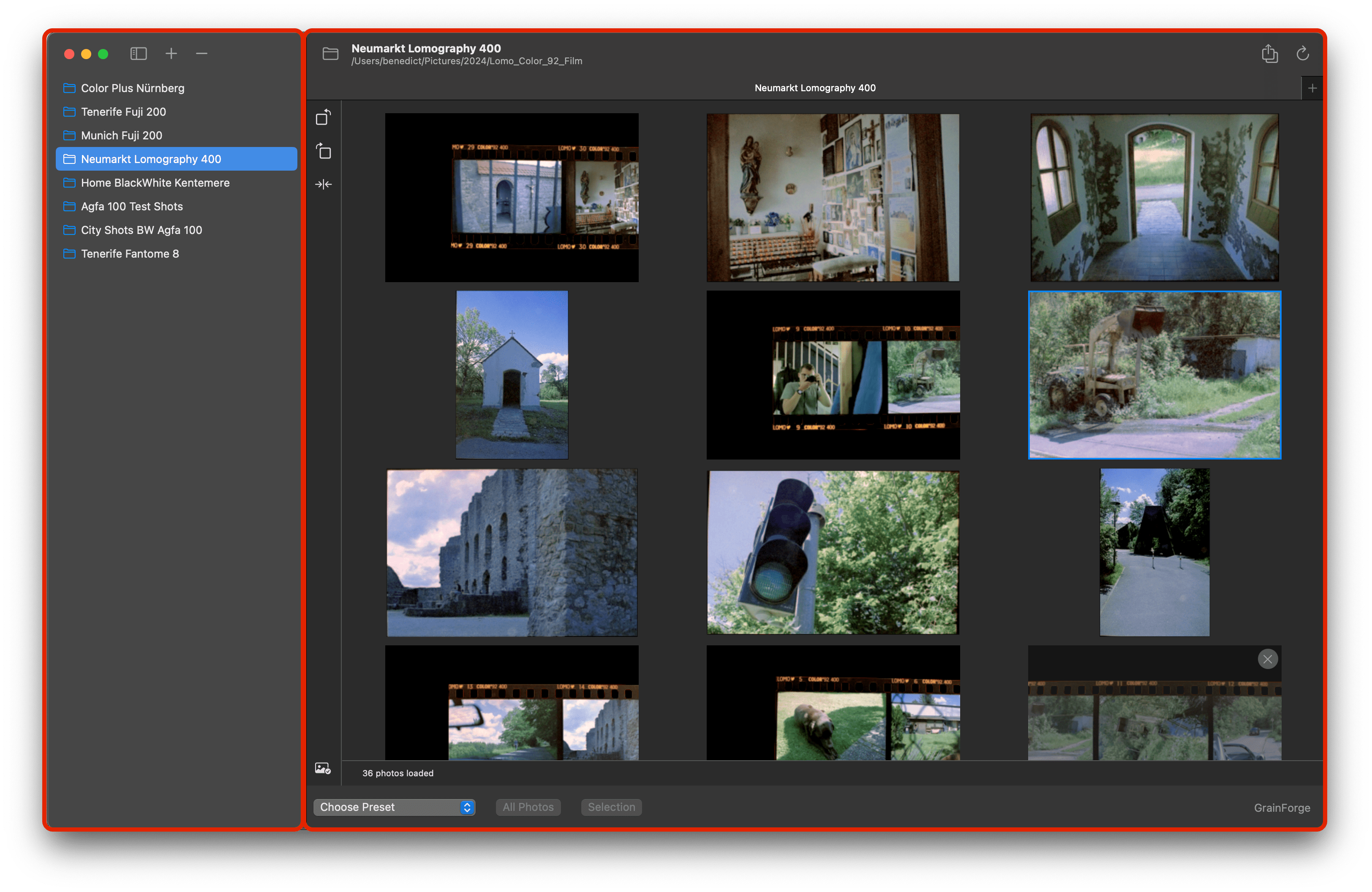
GrainForge is split into two parts vertically. On the left is the navigation bar where your added folders are shown and can be selected. The navigation bar can be put out of sight.
On the right the actual work takes place. It shows the main view where you curate and edit your images.
Main Views
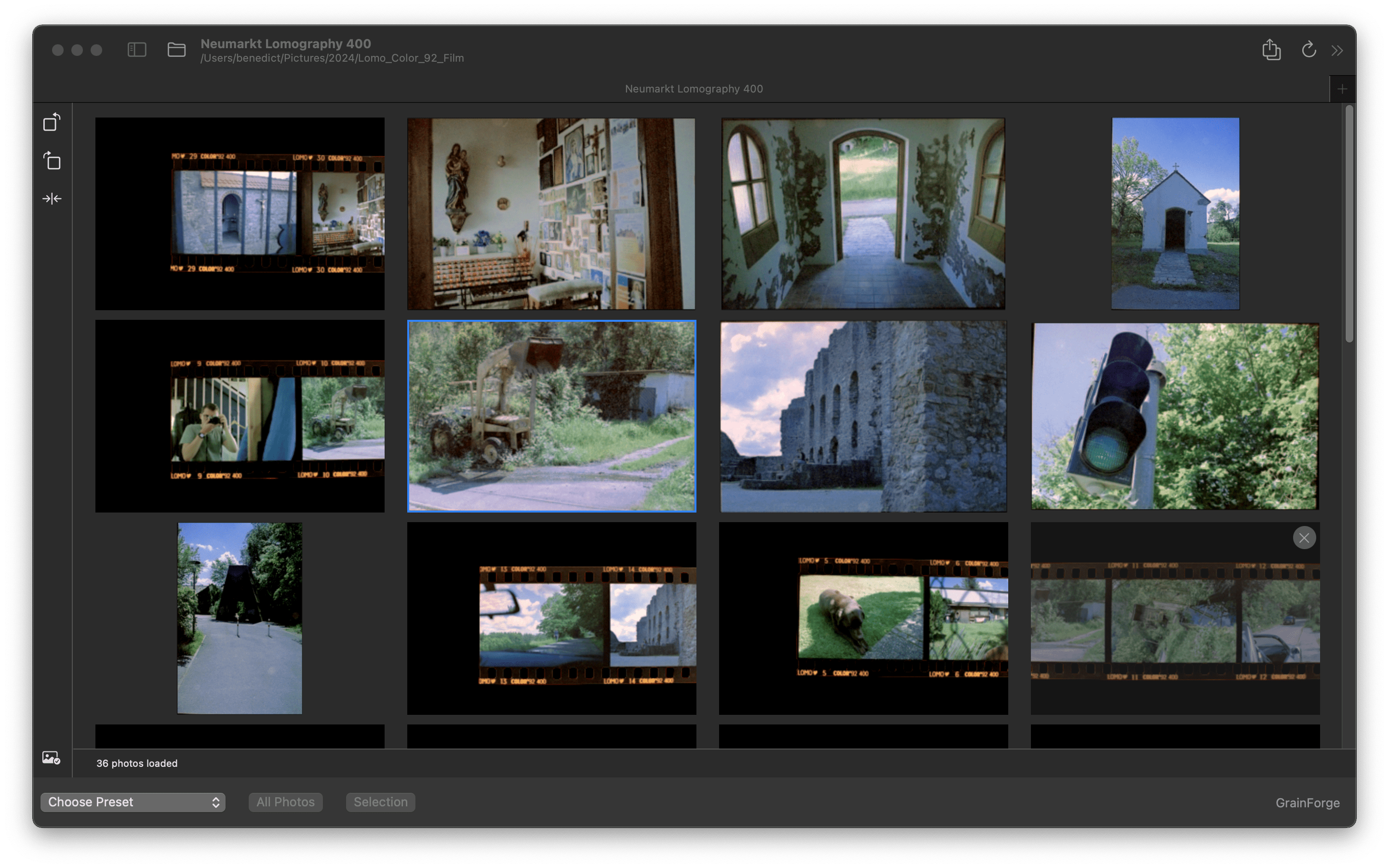
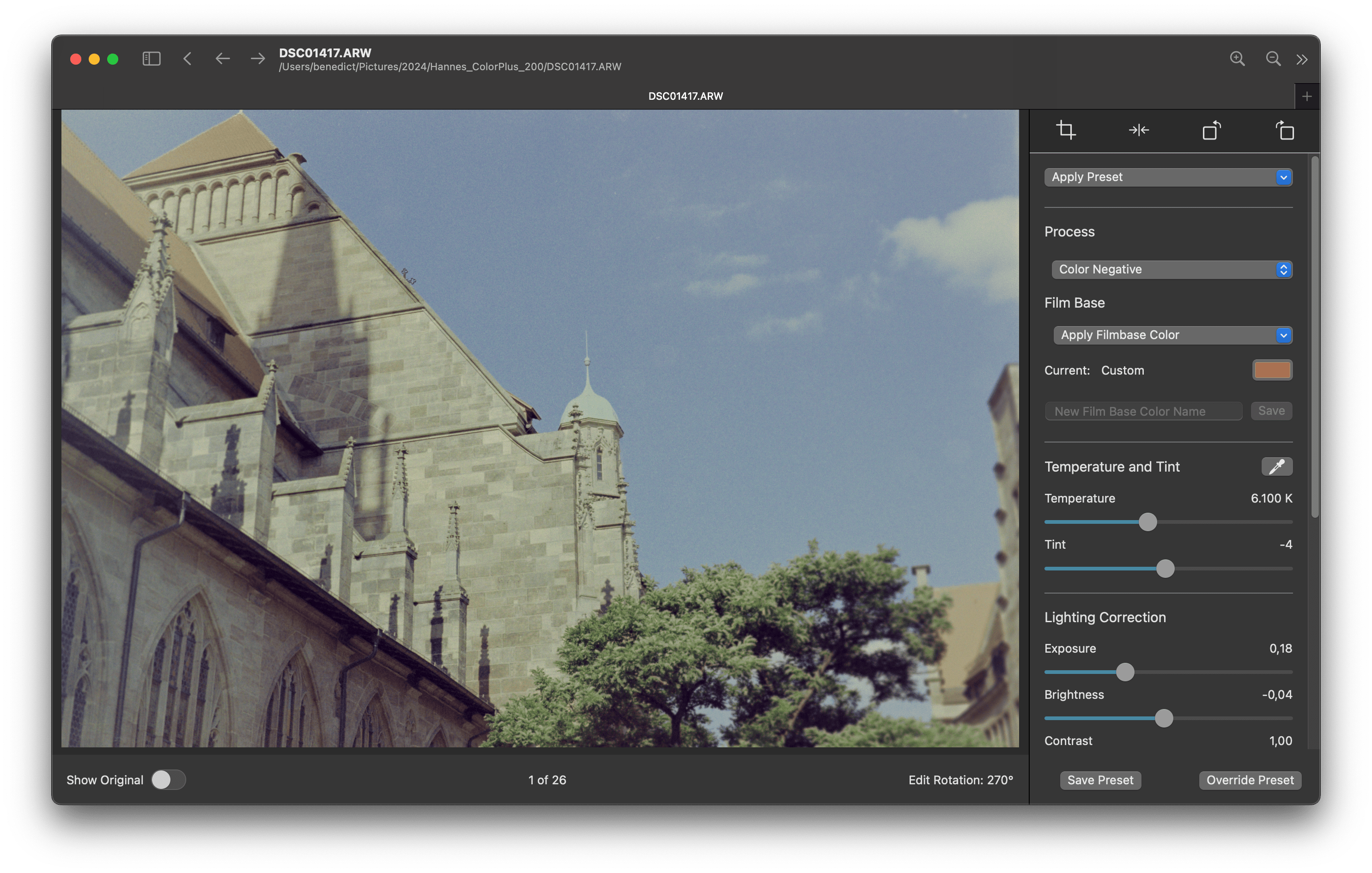
GrainForge knows two basic views in which the work takes place
- Gallery: The gallery is the first thing shown when selecting an added folder. It shows all images of the folder (not sub-folders).
- Edit: When selecting an image with a double-click the edit view is shown where you can process the images of the currently selected folder.
Data Model and Storage
GrainForge knows different data objects which are saved on your device. There is no online storage.
Savable objects are:
- The edit parameters of an image
- Film base colors
- Presets
- Added Folders
It is important to note that GrainForge does not save files for your edits. All the saving is done in background with the help of Apple’s persistence frameworks. This means that your disk does not get bloated with edit files for every single photo. But keep in mind that GrainForge is therefore sensitive to the file’s location and its name. If one of these changes, changes to the image get lost. For every image there is one saved photo edit that gets initially created when adding a folder with images to the application.