Gallery
The gallery is the first interface you encounter when selecting a folder. By default, 36 images are loaded from the folder (see the upper footer bar).
The gallery has three elements:
- The gallery itself
- The mass-edit side bar
- The preset application
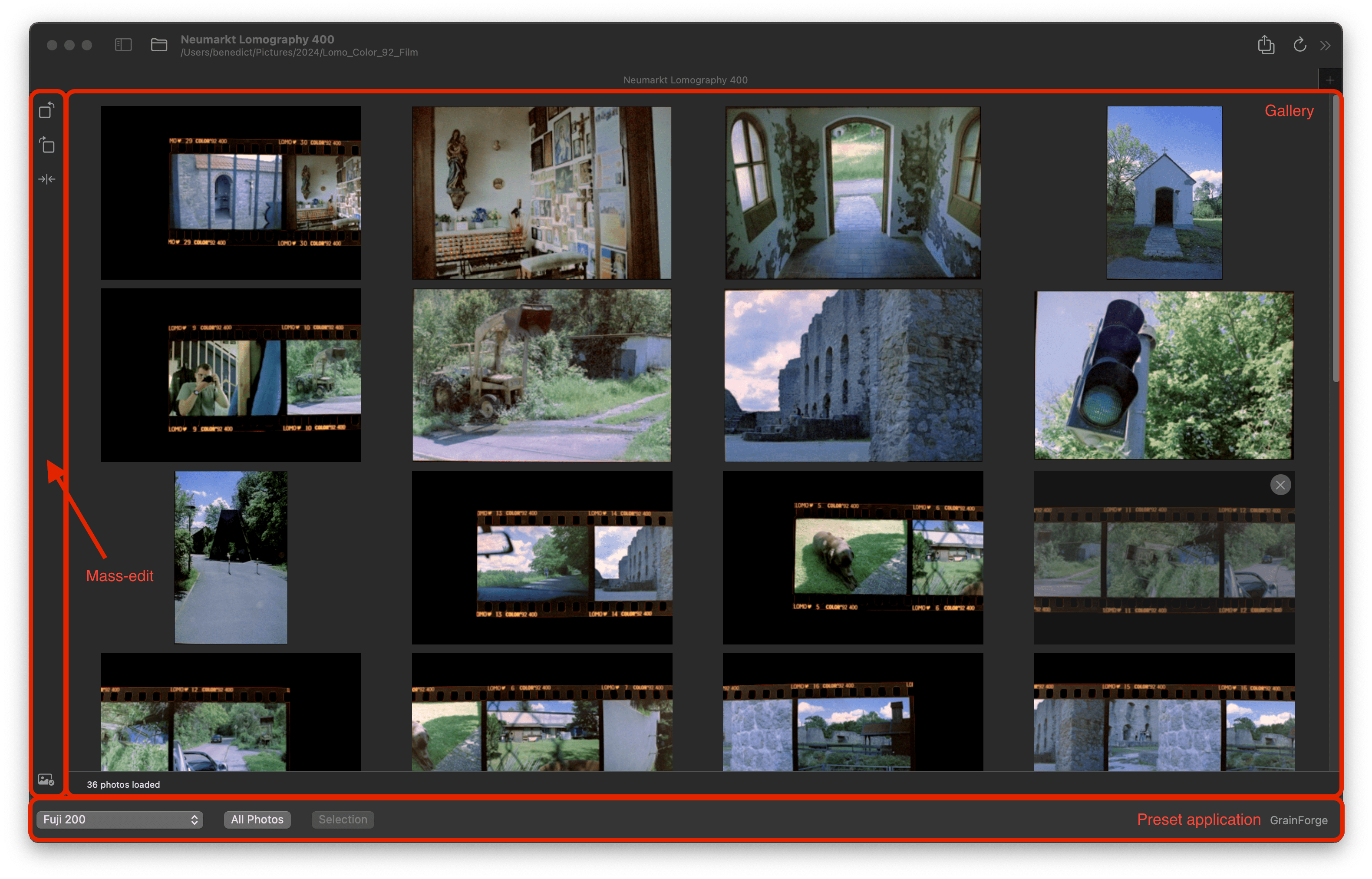
Gallery images
In the gallery images are shown in their edited state.
Image selection
They can be selected by clicking once on them. When holding ⌘ multiple images can be selected and deselected. With ⌘A all images can be selected.
To edit a single image and change to the edit view just double-click an image.
Image loading
At first, only 36 images are loaded. If your folder holds more images the bottom bar indicates this by showing you how many images can be loaded at max. The button “Load More” on the right side loads 36 more images into the gallery.

Mass-Edit
Selected Images can be mass-edited. On the left there are different edits available.
- Rotate left
- Rotate right
- Mirror the image (horizontally)
Exclusion of images
On the bottom of the mass-edit bar you can toggle the exclusion of images from the gallery.
Excluded images…
- are greyed out in the gallery.
- are not longer editable.
- will not be exported.
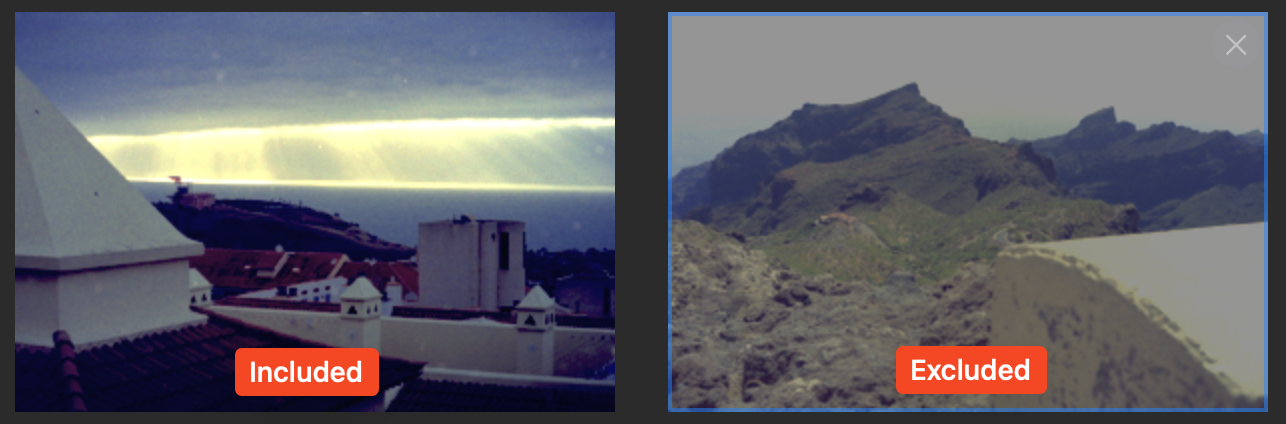
Applying Presets
On the very bottom saved presets can be applied to the gallery. Every saved preset can be chosen in the combo box. The preset can be applied to the whole gallery/folder or just to the selected images.
Open Corresponding Folder
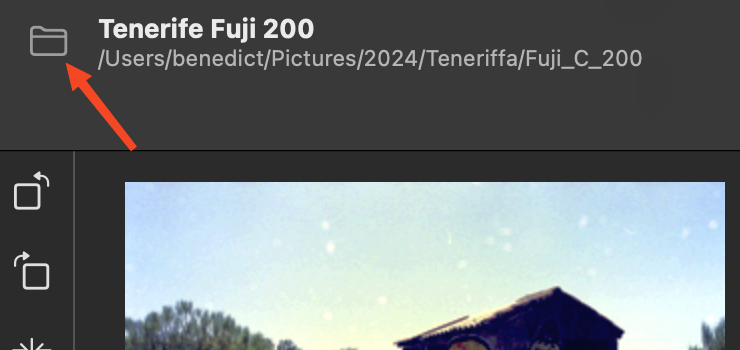
In the top bar of the left there is a folder symbol that is clickable. It opens the corresponding folder of the gallery. The shortcut for this is ⌘O.
Opening the folder is especially practical for adding and deleting photos directly on disk or open the exported images if they are saved in the same folder or a subfolder.
Refreshing Folder
When changes are made to the folder in the Finder GrainForge will not detect them directly. You can reload the whole folder with the reload button in the top-right corner (shortcut ⌘R). New photos will be loaded and be added to the gallery.