Edits
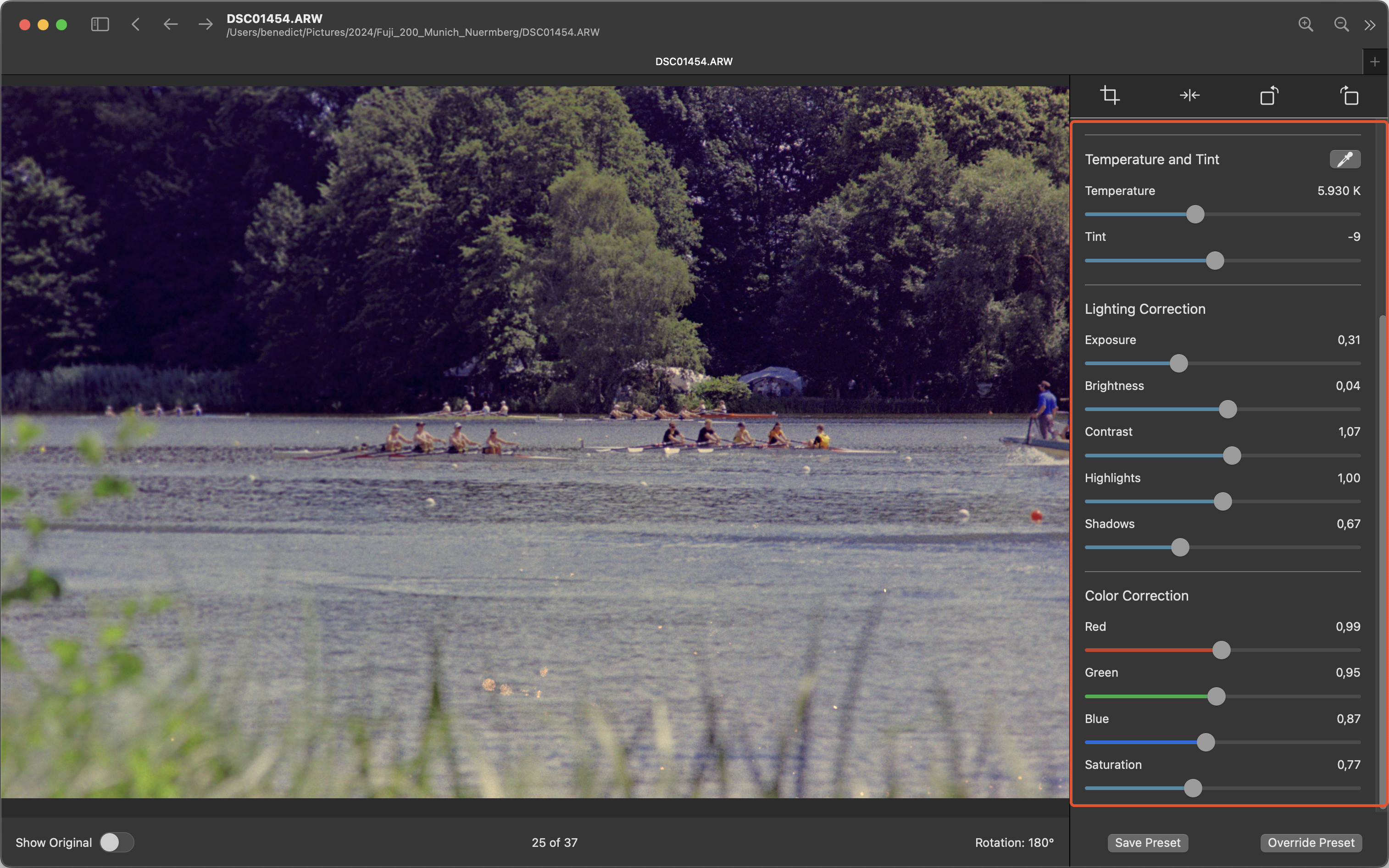
GrainForge allows many edits to fine tune your images. They are separated by categories:
- Temperature and Tint: Color correction for temperature and tint.
- Available for processes “Color Positive” and “Color Negative”.
- Lighting Correction: Fine-tuning for the lighting parameters of the image
- Available for all processes.
- Color Correction: Fine-tuning for the RGB colors of the image and its saturation
- Available for processes “Color Positive” and “Color Negative”.
Temperature and Tint Auto Calibration
Temperature and Tint can be auto calibrated based on the original image. To do this you must hit the pipette button next to the category caption. The original image will be shown.
Now select a part of the image that should be “color neutral”. That means a supposedly white, black or perfectly gray part of the image. GrainForge will apply an autocorrection for the temperature and tint. Manual tuning is still possible, of course.
Direct Value Entry
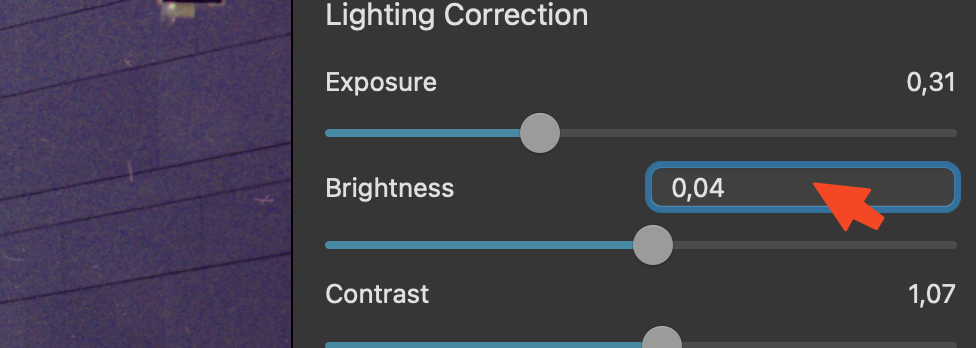
If you want to enter a precise value instead of using the sliders you can double-click the numeric value. The label changes to a text field where you can enter values directly. You cannot enter values that are out of range of the slider.
Reset Edit Value
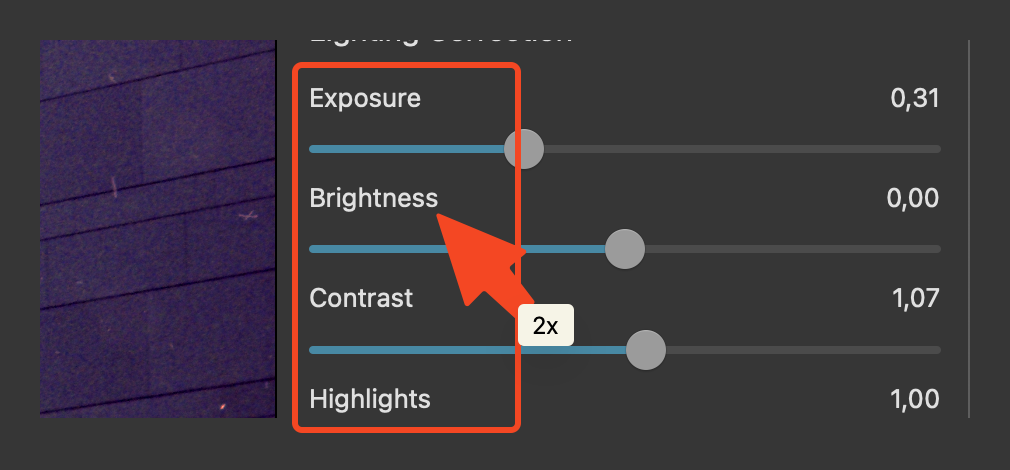
Sometimes you want to quickly default the edit value of a slider. This can quickly be done by double-clicking the name of the edit.