Cropping
Every image can be cropped. This can be done for example to cut out the actual image from a larger framed shot of your film stock.
To enter crop-mode hit the crop button on the top left of the edit bar. 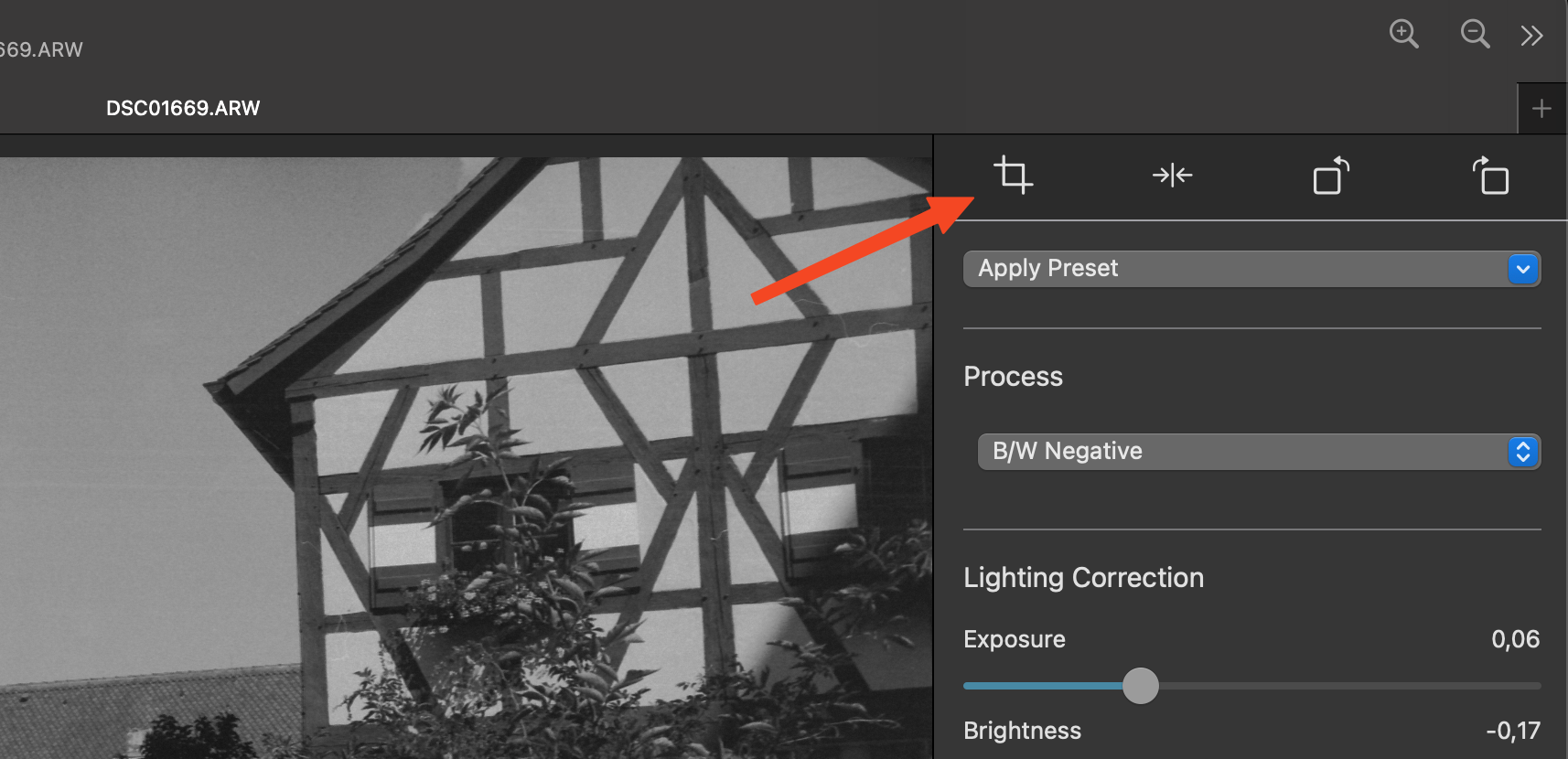
Change Crop and Aspect Ratios
In crop-mode the image always gets shown in its full extend with all other edits still applied. The crop-rectangle can be manipulated as you would expect.
- Resizing with the corner and side handles.
- Dragging the rectangle across the image.
As a standard, the aspect ratio of the crop is free. On the bottom you will find the option to fix the aspect ratio. Once fixed the ratio can be freely chosen. When the fixed aspect ratio changes GrainForge will always change the crop rectangle to the biggest possible rectangle possible for the current image. Preset ratios can be chosen from the drop-down next to the active ratio.
Important: The aspect ratio that is picked is relative to the orientation of the original Image. That means that if you rotate the image and change its orientation the aspect ratios work counterintuitively.
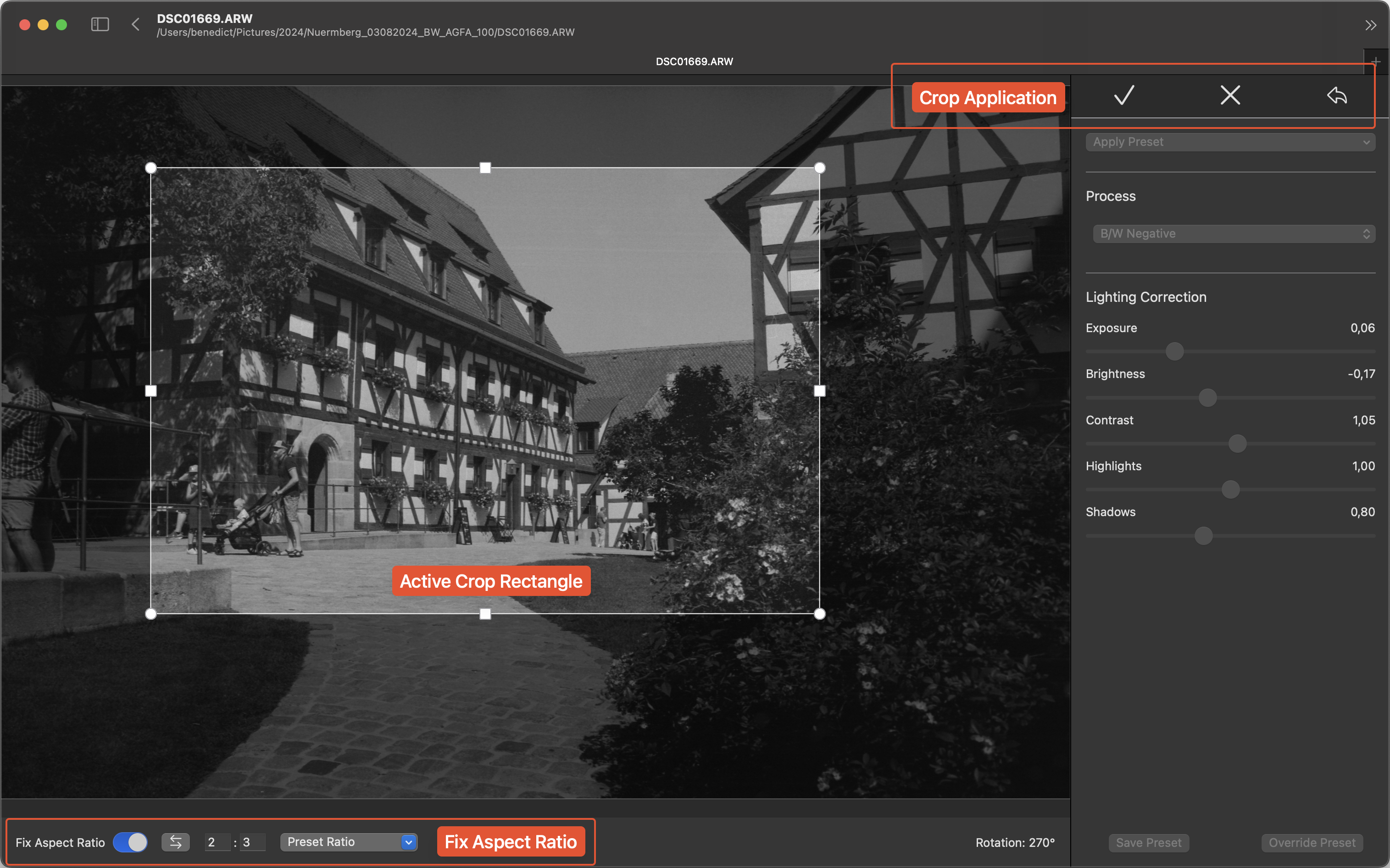
Crop Application
When you want to apply your crop you can submit it with the checkmark button.
If your changes should be discarded, click the cross button.
When a crop is already applied a “revert” button will also appear. Clicking it will remove the crop completely and the whole image will be shown and exported again.